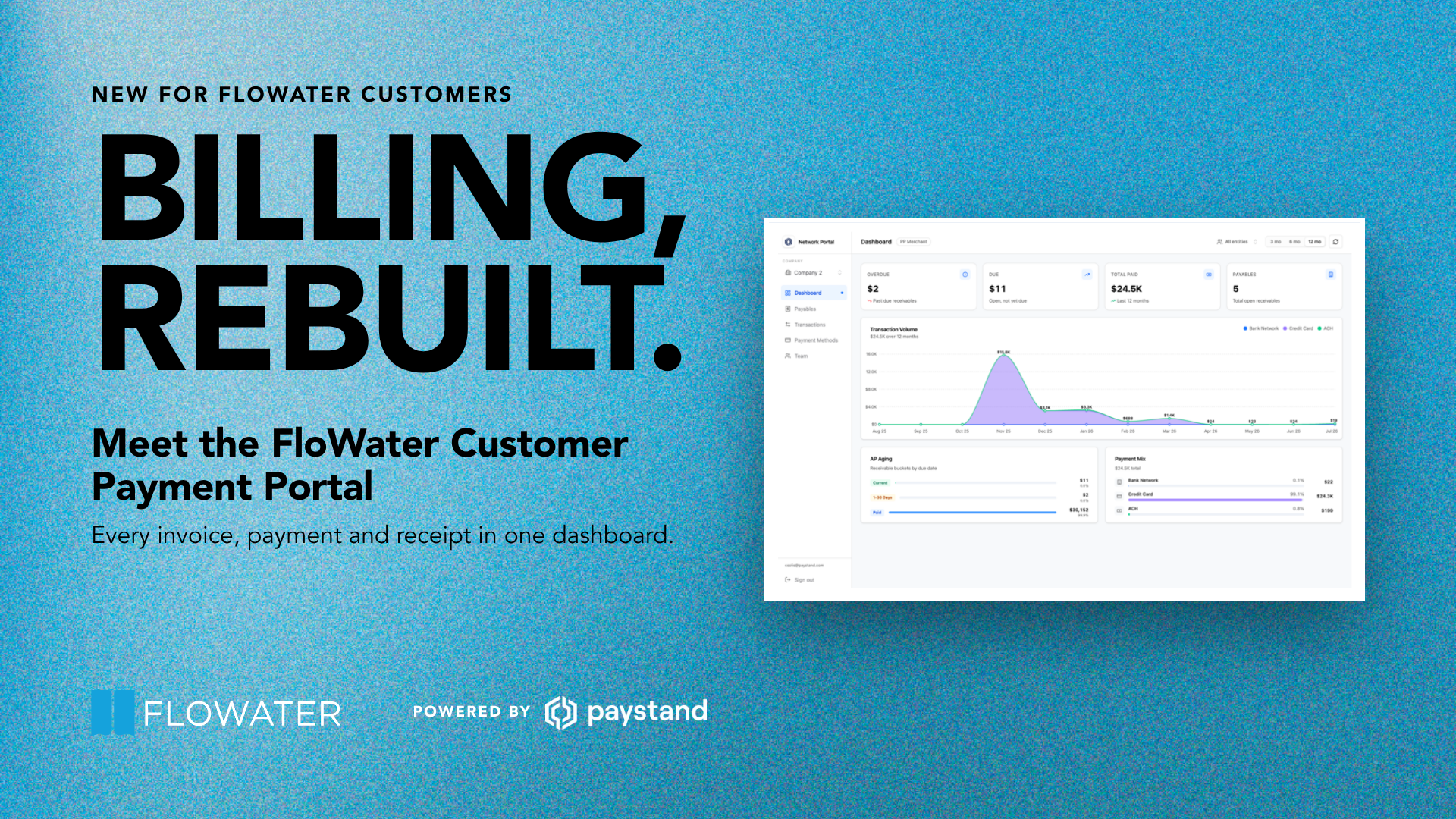
Starting November 17, 2026, you can view every FloWater invoice, payment and receipt in one place: the FloWater customer payment portal, powered by Paystand. You can sign in without a password, pay online by card, ACH or bank account, or e-check, download receipts anytime, and give your team their own access.
You asked for an easier way to pay, and we built it. This guide covers who the portal is for, what you can do in it, and exactly how to get set up in about two minutes. When you’re ready, you can open the portal anytime from our Support & Service page.
When you sign in, you’ll see the portal labeled Network Portal. That’s the name of the Paystand platform it runs on, and it’s the same thing.
Who is the portal for?
The portal is for every FloWater customer who receives an invoice from us, both business and residential.
- Business customers: offices, gyms, studios, schools, hotels and other workplaces with Refill Stations. Use the portal to see and pay every FloWater invoice, keep receipts for your books, manage payment methods across locations, and give your accounts payable team their own logins.
- Residential customers: households with a FloWater Classic or FloWater Essential Refill Station. Use the portal to manage and pay your filter change invoices, keep a saved payment method on file, and download receipts whenever you need them.
Whichever you are, sign-in works the same way. All you need is the email address on your FloWater account.
What can you do in the portal?
The portal replaces the back-and-forth of emailing for invoices, paying by phone and chasing receipts. Here’s what each tab does.
| Tab | What you can do |
|---|---|
| Dashboard | See what’s due, overdue and paid at a glance, plus your payment history over time. |
| Payables | View open and paid invoices, pay one or several at once, download invoice PDFs, or export a CSV. |
| Transactions | Review every payment made through the portal and download payment receipts. |
| Payment Methods | Save, edit or remove credit cards, debit cards and bank accounts. |
| Team | Invite colleagues and manage who has access. |
The biggest wins:
- No passwords. You sign in with a one-time link sent to your email.
- No more requesting invoices. Every invoice is waiting in Payables, so there’s no need to ask for it each month.
- Receipts on hand. Download any invoice or receipt when the books close.
- Your whole team. Give accounts payable, HR or a business partner their own access, with no limit on team members.
How do I sign in to the FloWater customer portal?
Setup takes about two minutes, and you never create a password.
- Go to our Support & Service page and open the customer portal via the button on the page called “Payment Portal”.
- Enter the exact email address on your FloWater account, then click Continue with email.
- Check your inbox for an email from Network Portal and click Sign in to Network Portal.
- You’ll land on your Dashboard. That’s it.
Use the exact email on your FloWater account. Your access is tied to the email we send your invoices to. A different address, even another one at your company or a personal email, won’t find your account, and the sign-in won’t work. Not sure which email we have on file? Ask us at [email protected].
Sign-in links are single use and expire after about 10 minutes. If a link doesn’t work, request a new one from the sign-in page.
How do I pay an invoice?
You can still pay an invoice from the FloWater emails you receive. From the Portal, you can pay one invoice or several at once, by credit card, debit card, or ACH or bank account.
- Open the Payables tab and stay on the Unpaid view.
- Check the box next to each invoice you want to pay, then click Pay Selected.
- In the secure Paystand checkout, review your invoices and the payment summary, choose a payment method, and confirm.
When you select several invoices, checkout opens with all open invoices for that location, so double-check which ones are ticked before you confirm.
After you pay:
- Paid invoices move to the Paid view in Payables.
- A new entry appears in Transactions. Click it to see the payment date, payment ID, method used and invoices covered, or click Download transaction receipt for your records.
Managing multiple locations and your team
These features are built mostly for business customers, though any account owner can invite a second person.
More than one location
If your organization has more than one billing location, use the company dropdown in the top-left corner to switch between them. The Entity column on each list shows which location an invoice, payment or saved card belongs to. Checkout takes one location per payment, so if you select invoices from more than one location, the portal will ask you to choose one.
Adding team members
Give colleagues, such as your accounts payable or HR team, their own access. There’s no limit on team members, and they never need a password either.
- Go to the Team tab.
- Enter their email address, choose a role, and click Send Invite.
| Role | What they can do |
|---|---|
| Owner | The first person at your organization to sign in. Full access, same permissions as a Manager. |
| Manager | View invoices and transactions, make payments, manage payment methods, and invite or remove team members. |
| Viewer | Read only: view invoices, transactions and the Dashboard, and download PDFs and receipts. Can’t pay or make changes. |
Owners and Managers can change a member’s role or remove their access at any time from the Team tab.
Frequently asked questions
My sign-in link isn’t working. What do I do? Sign-in links are single use and expire after about 10 minutes. Go back to the sign-in page and request a new one.
I entered my email but nothing happened. Make sure you’re using the exact email address on your FloWater account, the one we send your invoices to. Any other address won’t find your account. Check your spam folder too. Still stuck? Email [email protected].
My team invitation expired. Ask the colleague who invited you to send a new one from the Team tab.
Where do I find a receipt for a past payment? Open Transactions and click the receipt icon on any payment, or use Export CSV for your full history. Invoice PDFs are in Payables.
I’m a residential customer. Do I need the portal? Yes. It’s the easiest way to see and pay your filter change invoices, keep a card on file, and grab receipts without emailing us.
Will FloWater ever ask for my card details by phone, text or DM? No. Only enter payment details inside the portal’s secure checkout. [VERIFY with Finance]
Get started
Your invoices are already waiting. Head to our Support & Service page, open the customer portal, and sign in with the email on your FloWater account. Bookmark the page so you can come back to it each month.
Questions? We’re happy to help at [email protected].